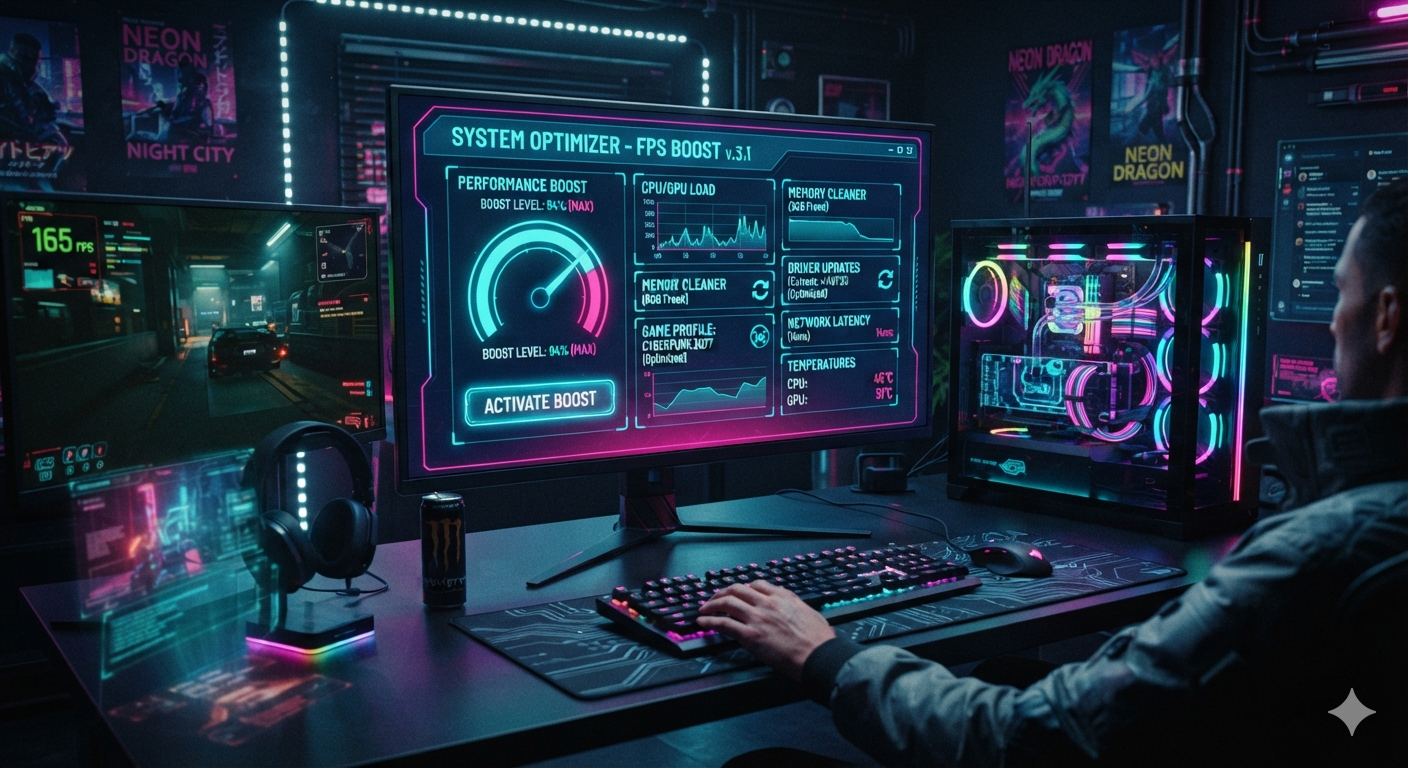
How to Reduce Lag in Online Games
Nothing ruins an online gaming session faster than lag. You’re about to land the winning shot in a battle royale, score the deciding goal in a sports game, or defeat a powerful boss with your team—then suddenly your character freezes, teleports across the screen, or disconnects from the server. Moments like these can turn an exciting match into a frustrating experience.
Online games have become more competitive than ever. Whether you’re playing first-person shooters, multiplayer online battle arenas (MOBAs), racing games, MMORPGs, or battle royale titles, a stable and responsive connection is essential. Even a small delay can mean the difference between victory and defeat.
The good news is that lag isn’t always caused by slow internet. In many cases, simple changes to your network setup, hardware, software, or game settings can dramatically improve your experience.
In this comprehensive guide, you’ll learn what causes lag, the different types of lag, and the most effective ways to reduce it so you can enjoy smoother gameplay.
What Is Lag?
Lag is a delay between your action and the game’s response.
For example:
- You press the jump button, but your character jumps half a second later.
- You fire at an opponent, but the hit registers too late.
- Other players appear to teleport instead of moving smoothly.
- The game freezes briefly before continuing.
Lag can occur for several reasons, including internet problems, hardware limitations, overloaded servers, or poorly optimized game settings.
Understanding the source of the problem is the first step toward fixing it.
Types of Lag
Not all lag is the same. Identifying the type you’re experiencing will help you choose the right solution.
1. Network Lag
Network lag is caused by delays in communication between your device and the game server.
Common symptoms include:
- High ping
- Delayed actions
- Rubberbanding
- Players teleporting
- Frequent disconnects
2. FPS Lag
Frames Per Second (FPS) lag occurs when your computer or console struggles to render the game smoothly.
Symptoms include:
- Stuttering
- Choppy animations
- Screen freezing
- Slow camera movement
3. Server Lag
Sometimes the problem isn’t on your end.
If the game’s servers are overloaded or experiencing technical issues, every player connected to that server may notice lag, regardless of their internet speed.
Check Your Internet Speed
Many players assume faster download speeds automatically mean better gaming performance.
In reality, online games use relatively little bandwidth. What matters most is:
- Low ping
- Stable connection
- Low jitter
- Minimal packet loss
As a general guideline:
- Download speed: 25 Mbps or higher
- Upload speed: 5 Mbps or higher
- Ping: Under 50 ms is excellent
- Jitter: Below 20 ms
- Packet loss: 0%
If your connection meets these requirements but you still experience lag, other factors may be involved.
Use a Wired Ethernet Connection
Wi-Fi is convenient, but it’s more susceptible to interference from walls, other devices, and neighboring networks.
Whenever possible:
- Connect your PC or console directly to your router using an Ethernet cable.
- Use a high-quality Cat5e, Cat6, or Cat6a cable.
- Avoid damaged or excessively long cables.
Benefits of Ethernet include:
- Lower latency
- Greater stability
- Fewer connection drops
- Reduced packet loss
For competitive gaming, a wired connection is almost always the best option.
Position Your Wi-Fi Router Properly
If Ethernet isn’t an option, optimizing your Wi-Fi setup can make a noticeable difference.
Place your router:
- In a central location.
- Off the floor.
- Away from thick walls.
- Away from microwaves and cordless phones.
- Away from large metal objects.
Also consider switching from the crowded 2.4 GHz band to the faster 5 GHz or 6 GHz band if your devices support it.
Close Background Applications
Many programs use your internet connection without you realizing it.
Examples include:
- Cloud backups
- Video streaming services
- Web browsers with many tabs
- File downloads
- Automatic updates
- Messaging apps
- Music streaming
Before gaming:
- Pause downloads.
- Stop unnecessary background apps.
- Close bandwidth-heavy browser tabs.
This frees up both network bandwidth and system resources.
Update Your Network Drivers
Outdated network drivers can lead to connection instability and performance issues.
Regularly update:
- Ethernet drivers
- Wi-Fi adapter drivers
- Motherboard chipset drivers
Download drivers from your hardware manufacturer’s official support page to ensure compatibility and security.
Update Your Graphics Drivers
If you’re experiencing FPS lag rather than network lag, graphics drivers may be the culprit.
New GPU drivers often include:
- Performance optimizations
- Bug fixes
- Game-specific improvements
- Stability enhancements
Keeping your graphics drivers current can provide smoother gameplay, especially in newly released titles.
Lower Graphics Settings
Running games at settings beyond your hardware’s capabilities can lead to frame rate drops.
Reducing these settings often provides the biggest performance gains:
- Shadow quality
- Ambient occlusion
- Ray tracing
- Reflections
- Volumetric lighting
- Anti-aliasing
- View distance
- Particle effects
Aim for a stable frame rate rather than the highest visual quality.
Limit Background CPU Usage
High CPU usage can create stutters even if your internet is stable.
Check Task Manager (Windows) or Activity Monitor (macOS) for applications consuming excessive CPU resources.
Common offenders include:
- Video editing software
- Virtual machines
- Browser processes
- Antivirus scans
- Compression tools
Closing these applications before gaming can reduce frame drops.
Restart Your Router Regularly
Routers can become less responsive after running continuously for extended periods.
A simple restart:
- Clears temporary memory
- Refreshes network connections
- Resolves minor software issues
- Improves stability
Power off your router for about 30 seconds, then turn it back on.
Choose the Nearest Game Server
Many online games allow you to select a server region.
Always choose the region closest to your physical location whenever possible.
Examples:
- North America
- Europe
- Asia
- Oceania
- South America
The farther your data has to travel, the higher your ping is likely to be.
Reduce Household Network Congestion
If multiple people in your home are:
- Streaming 4K videos
- Downloading large files
- Uploading backups
- Joining video calls
Your gaming experience may suffer.
If your router supports Quality of Service (QoS), prioritize gaming traffic to reduce delays during busy periods.
Optimize In-Game Settings
Many games include network-related options.
Examples include:
- Data center selection
- Bandwidth limits
- Frame rate caps
- Render scaling
- Input buffering
- Network smoothing
Experiment with these settings to find the best balance for your system and connection.
Upgrade Your Router
Older routers may struggle to handle multiple connected devices efficiently.
Consider upgrading if your router:
- Is several years old.
- Doesn’t support Wi-Fi 5, Wi-Fi 6, or Wi-Fi 6E.
- Frequently disconnects.
- Has poor range.
- Lacks QoS features.
A modern router can improve both speed and connection stability.
Reduce Packet Loss
Packet loss occurs when data fails to reach its destination.
Symptoms include:
- Rubberbanding
- Delayed hit registration
- Voice chat interruptions
- Random disconnects
Common causes:
- Weak Wi-Fi signal
- Faulty cables
- ISP issues
- Router problems
- Congested networks
Switching to Ethernet and improving signal strength are among the most effective solutions.
Enable Game Mode
Many operating systems and gaming devices include a Game Mode.
Game Mode typically:
- Prioritizes gaming processes.
- Reduces background activity.
- Optimizes resource allocation.
- Minimizes interruptions from notifications and updates.
Enabling it is a simple way to improve performance.
Keep Your Storage Drive Healthy
Games installed on a nearly full or failing storage drive may load assets more slowly, causing hitching or longer load times.
For best performance:
- Keep at least 15–20% free space on your drive.
- Install games on an SSD if possible.
- Remove unused applications and files.
- Ensure your storage device is in good health.
Monitor Your System Temperature
Overheating components can reduce performance through thermal throttling.
Signs of overheating include:
- Sudden FPS drops
- Loud fan noise
- Unexpected shutdowns
- Reduced performance over time
To keep temperatures under control:
- Clean dust from fans and vents.
- Ensure good airflow around your PC or console.
- Replace worn thermal paste if necessary (for experienced users).
- Avoid blocking air vents.
Disable Unnecessary Overlays
Background overlays can sometimes affect performance.
Examples include:
- Screen recording tools
- Voice chat overlays
- Performance monitoring overlays
- Streaming software overlays
Disable any overlays you don’t need while gaming.
Check for Malware
Malware and unwanted software can consume both network bandwidth and system resources.
Run a trusted security scan periodically and remove any threats you find. Keeping your operating system and security software up to date also helps protect performance.
Consider Your ISP Plan
If multiple people share your internet connection or your household frequently downloads large files, your current plan may no longer meet your needs.
When comparing plans, focus on:
- Reliable speeds during peak hours
- Low latency
- Stable upload performance
- Good customer support
A faster plan won’t automatically reduce ping, but a more reliable connection can improve overall gaming consistency.
Troubleshooting Checklist
If you’re still experiencing lag, work through this checklist:
- Restart your game.
- Reboot your router and modem.
- Test your internet connection.
- Switch to Ethernet if available.
- Close background applications.
- Update graphics and network drivers.
- Lower demanding graphics settings.
- Select the nearest game server.
- Check whether the game’s servers are experiencing issues.
- Restart your PC or console.
Following these steps methodically can help identify the root cause.
Common Myths About Gaming Lag
Myth 1: Faster Download Speed Always Means Less Lag
Not necessarily. Low ping, low jitter, and minimal packet loss are usually more important than very high download speeds.
Myth 2: Expensive Gaming Routers Eliminate Lag
A premium router can improve network management and coverage, but it can’t solve ISP issues or overloaded game servers.
Myth 3: Wi-Fi Is Always Bad for Gaming
Modern Wi-Fi can perform very well when the signal is strong and interference is low. However, Ethernet remains the most stable option for competitive play.
Myth 4: Lower Graphics Settings Reduce Network Lag
Lower graphics settings can improve FPS, but they won’t directly lower your ping or fix server-related delays.
Frequently Asked Questions
What is a good ping for online gaming?
A ping below 20 ms is excellent, 20–50 ms is very good, 50–100 ms is acceptable for most games, and anything above 100 ms may result in noticeable delays, especially in competitive titles.
Why do I have fast internet but still experience lag?
High download speeds don’t guarantee low latency. Issues such as Wi-Fi interference, network congestion, packet loss, high jitter, or distant game servers can all cause lag.
Does Ethernet really make a difference?
Yes. A wired Ethernet connection generally offers lower latency, greater stability, and fewer interruptions than Wi-Fi, making it the preferred choice for online gaming.
Can overheating cause lag?
Yes. If your CPU or GPU overheats, it may reduce its operating speed to protect itself, leading to FPS drops and stuttering.
Should I upgrade my PC to reduce lag?
If your issue is low frame rates caused by outdated hardware, upgrading components such as your graphics card, processor, or adding more RAM can improve performance. If the problem is network-related, improving your internet connection or home network setup is more effective.
Final Thoughts
Reducing lag in online games isn’t about relying on a single fix—it’s about optimizing every part of your gaming setup. A stable internet connection, low latency, updated hardware drivers, appropriate graphics settings, and a well-maintained computer or console all contribute to a smoother experience.
Start with the basics: use a wired Ethernet connection whenever possible, keep your drivers up to date, close unnecessary background applications, and connect to the nearest game server. Then fine-tune your graphics settings and monitor your system’s performance to eliminate bottlenecks.
By understanding the difference between network lag, FPS drops, and server issues, you’ll be better equipped to diagnose problems quickly and apply the right solution. Whether you’re competing in fast-paced shooters, exploring massive MMORPGs, or enjoying cooperative adventures with friends, these optimizations can help you spend less time battling lag—and more time enjoying the game.