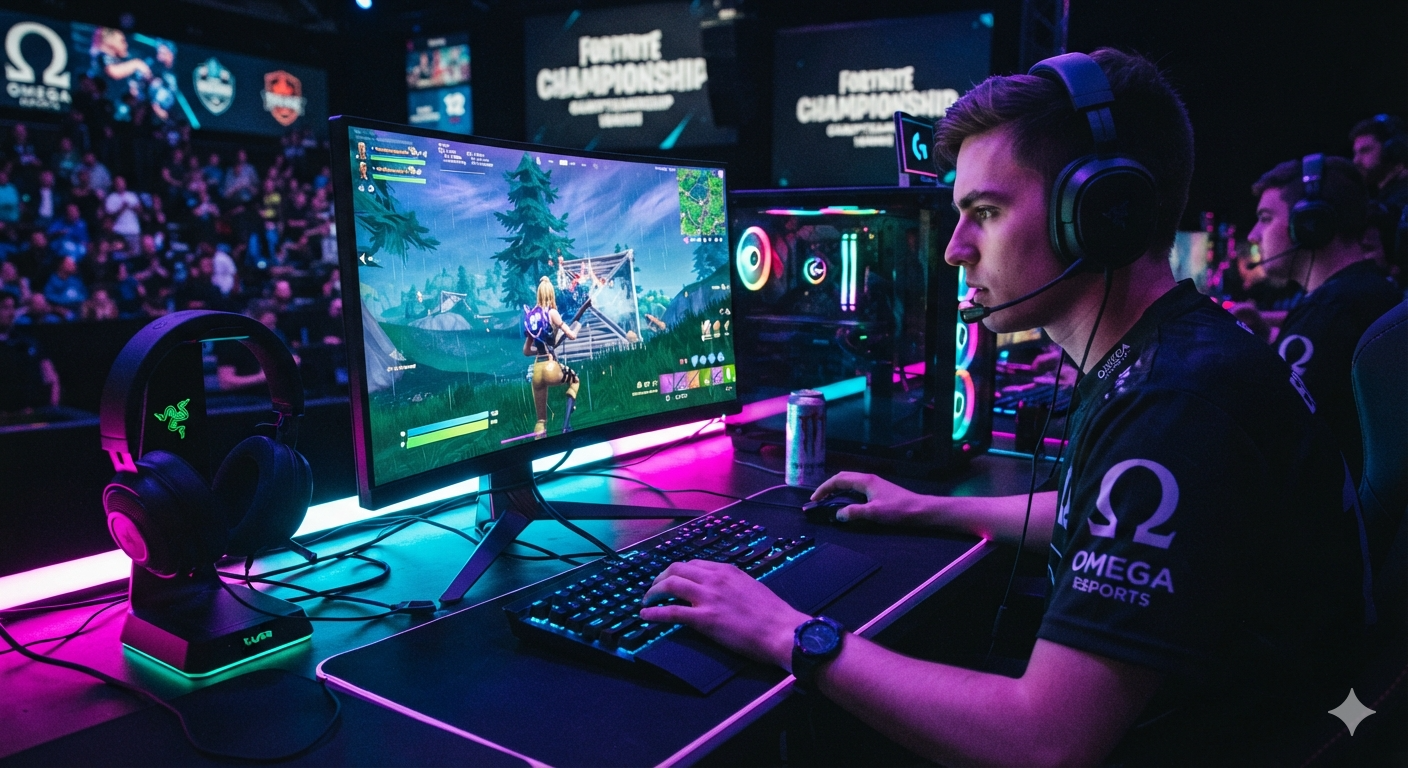
If you’re serious about improving your gameplay in Fortnite, achieving high FPS (Frames Per Second) should be one of your top priorities. Whether you’re playing casually, grinding Ranked mode, or competing in tournaments, smooth gameplay can make a noticeable difference in your reaction time, aiming accuracy, and overall experience.
Many players spend hundreds or even thousands of dollars upgrading their gaming PCs, yet overlook one of the easiest ways to improve performance—optimizing Fortnite’s settings. By adjusting the right graphics options, Windows settings, and in-game configurations, you can significantly increase FPS without spending a dime.
This comprehensive guide covers the best Fortnite settings for high FPS in 2026. We’ll explain every important graphics option, recommend settings for different hardware, and share extra optimization tips to help you achieve the smoothest gameplay possible.
Why High FPS Matters in Fortnite
Frames Per Second (FPS) refers to how many images your computer renders every second. The higher the FPS, the smoother your game appears.
Benefits of higher FPS include:
- Reduced input lag
- Smoother mouse movement
- Better tracking during fights
- Faster reaction times
- More consistent gameplay
- Improved competitive performance
Competitive Fortnite players often prioritize FPS over visual quality because smoother gameplay provides a real advantage during fast-paced battles.
Minimum and Recommended Hardware
Before changing settings, ensure your PC meets at least the recommended specifications.
Minimum Requirements
- Windows 10 or Windows 11 (64-bit)
- Intel Core i3 or equivalent
- 8 GB RAM
- Intel HD 4000 or better
- SSD recommended
Recommended for High FPS
- Intel Core i5/i7 or AMD Ryzen 5/7
- 16 GB RAM
- NVIDIA RTX 3060 or better
- AMD RX 6700 XT or better
- NVMe SSD
Modern hardware allows Fortnite to easily exceed 144 FPS with optimized settings.
Display Settings
These settings have the biggest impact on performance.
Window Mode
Recommended: Fullscreen
Fullscreen provides:
- Lower input delay
- Better GPU performance
- More stable frame rates
Avoid Windowed mode unless absolutely necessary.
Resolution
Native resolution provides the sharpest image.
Common resolutions include:
- 1920×1080 (Best balance)
- 2560×1440
- 3840×2160
Players seeking maximum FPS may lower the resolution slightly, but image quality decreases.
Frame Rate Limit
Choose a limit based on your monitor.
Examples:
- 60 Hz monitor → 120 FPS
- 144 Hz monitor → 160 FPS
- 165 Hz monitor → 180 FPS
- 240 Hz monitor → 240 FPS
- 360 Hz monitor → 360 FPS
Never leave FPS uncapped if it causes unstable frame pacing.
Rendering Mode
Fortnite offers several rendering options.
Performance Mode
Best for:
- Competitive players
- Older PCs
- Maximum FPS
Pros:
- Highest FPS
- Lowest input lag
- Simplified graphics
Cons:
- Reduced visual quality
DirectX 11
Good compatibility.
Works well on older GPUs.
DirectX 12
Recommended for modern systems.
Benefits:
- Better CPU utilization
- Improved GPU efficiency
- More stable performance
If your PC supports it, DirectX 12 is often the best choice.
Graphics Quality Settings
Below are the ideal graphics settings for maximum FPS.
Brightness
Recommended:
100%
This has almost no impact on performance.
User Interface Contrast
Low
Purely personal preference.
Color Blind Mode
Optional
Many competitive players use Tritanope because it slightly improves visibility.
Motion Blur
OFF
Motion blur reduces clarity during movement.
Turning it off improves visibility.
V-Sync
OFF
V-Sync introduces additional input lag.
Competitive players should disable it.
Anti-Aliasing & Super Resolution
Recommended:
Off
This increases FPS and reduces GPU workload.
Shadows
OFF
One of the biggest FPS killers.
Turning shadows off can increase FPS significantly.
Global Illumination
OFF
Provides almost no competitive advantage.
Disable for better performance.
Reflections
OFF
High GPU usage.
Disable for maximum FPS.
View Distance
Recommended:
Medium
Higher view distance slightly helps spotting objects but reduces FPS.
Medium offers the best balance.
Textures
Low
Textures mainly affect VRAM usage.
Low textures increase performance.
Effects
Low
Reduces unnecessary visual effects.
Post Processing
Low
Improves FPS while keeping gameplay clear.
Best NVIDIA Settings
Open NVIDIA Control Panel.
Recommended settings:
Power Management Mode:
Prefer Maximum Performance
Low Latency Mode:
Ultra
Texture Filtering Quality:
High Performance
Threaded Optimization:
Auto
Vertical Sync:
Off
Maximum Frame Rate:
Off
These settings help reduce latency and improve performance.
Best AMD Radeon Settings
For AMD users:
- Radeon Anti-Lag: Enabled
- Radeon Chill: Disabled
- Enhanced Sync: Disabled
- Surface Format Optimization: Enabled
- Texture Filtering Quality: Performance
Windows Optimization
Windows settings also affect FPS.
Enable Game Mode
Windows Settings
Gaming
Game Mode
Turn it ON.
Game Mode prioritizes Fortnite over background processes.
Hardware Accelerated GPU Scheduling
Enable if supported.
This may reduce latency on newer GPUs.
High Performance Power Plan
Select:
High Performance
or
Ultimate Performance
This prevents Windows from limiting CPU performance.
Disable Startup Programs
Many unnecessary programs run automatically.
Disable software you don’t need, such as:
- Discord auto-start
- Spotify
- RGB software
- Game launchers
Update GPU Drivers
Always install the latest graphics drivers.
Both NVIDIA and AMD regularly release Fortnite optimizations.
SSD vs HDD
Installing Fortnite on an SSD provides:
- Faster loading
- Shorter matchmaking times
- Reduced texture pop-in
- Better overall responsiveness
NVMe SSDs perform even better.
Best Mouse Settings
Many professional players use:
DPI:
800
In-game sensitivity:
5–10%
Polling Rate:
1000 Hz
These settings provide accurate aiming while maintaining control.
Best Keyboard Settings
Useful keybind tips:
- Sprint: Left Shift
- Edit: F or Mouse Button
- Wall: Mouse Button
- Floor: Q
- Ramp: C
- Cone: Left Shift or Mouse Button
Comfortable keybinds reduce hand movement and improve building speed.
Performance Mode Tips
Performance Mode offers the biggest FPS improvement.
Benefits include:
- Simplified environment
- Reduced textures
- Faster rendering
- Better visibility
- Lower GPU usage
Many professional Fortnite players continue using Performance Mode despite having high-end PCs.
Network Optimization
FPS isn’t everything.
Stable internet matters too.
Tips:
- Use Ethernet instead of Wi-Fi.
- Close downloads while gaming.
- Avoid streaming videos during matches.
- Restart your router occasionally.
- Choose the closest matchmaking region.
Lower ping complements high FPS for the best gameplay.
Common FPS Problems
FPS Drops
Possible causes:
- Outdated GPU drivers
- Background applications
- CPU overheating
- Windows updates
- High graphics settings
Stuttering
Solutions:
- Enable DirectX 12
- Install Fortnite on SSD
- Update chipset drivers
- Verify game files
- Restart the PC
High CPU Usage
Try:
- Closing browsers
- Disabling overlays
- Lowering View Distance
- Updating BIOS if necessary
Best Fortnite Settings Summary
For maximum FPS:
- Window Mode: Fullscreen
- Resolution: Native
- Rendering Mode: Performance Mode
- V-Sync: Off
- Motion Blur: Off
- Shadows: Off
- Textures: Low
- Effects: Low
- Post Processing: Low
- Reflections: Off
- Global Illumination: Off
- View Distance: Medium
- FPS Limit: Match your monitor
These settings provide the best balance between smooth gameplay and competitive visibility.
Additional Tips to Boost FPS
Here are a few extra tricks that can squeeze out more performance:
- Keep at least 20% of your SSD free.
- Clean dust from your PC regularly to prevent thermal throttling.
- Close unnecessary browser tabs before launching Fortnite.
- Disable overlays from Discord, Steam, NVIDIA GeForce Experience, or AMD Adrenalin if you don’t use them.
- Monitor CPU and GPU temperatures with trusted software to ensure your system isn’t overheating.
- Restart your PC before long gaming sessions to free up system resources.
Small improvements can add up, especially on mid-range or older systems.
Frequently Asked Questions (FAQ)
What is the best rendering mode for FPS?
Performance Mode generally delivers the highest FPS, especially on low-end and mid-range PCs. On powerful modern systems, DirectX 12 may provide more consistent frame times.
Should I cap my FPS?
Yes. Setting an FPS cap slightly above your monitor’s refresh rate often provides smoother gameplay and reduces unnecessary GPU usage.
Does lowering textures increase FPS?
It can, particularly if your graphics card has limited VRAM. Lower textures reduce memory usage and help prevent stuttering.
Is 144 FPS enough for Fortnite?
Absolutely. For most players, 144 FPS paired with a 144 Hz monitor offers an excellent competitive experience. Higher frame rates, such as 240 FPS, provide additional smoothness but require more powerful hardware.
Can an SSD improve FPS?
An SSD won’t dramatically increase average FPS, but it improves loading times, texture streaming, and overall system responsiveness, leading to a smoother experience.
Conclusion
Optimizing Fortnite for high FPS doesn’t require expensive upgrades. By selecting the right in-game settings, enabling Performance Mode or DirectX 12 where appropriate, updating your graphics drivers, and tuning Windows for gaming, you can significantly improve performance and reduce input lag.
For competitive players, prioritizing frame rate over graphical fidelity is often the best choice. Smooth, consistent gameplay makes aiming easier, building faster, and reacting quicker in intense fights. Even if you have a high-end gaming PC, using optimized settings can provide a more stable experience and help you maintain high frame rates during busy end-game scenarios.
Take the time to test these recommendations and fine-tune them based on your hardware. With the right configuration, you’ll enjoy smoother gameplay, higher FPS, and a better chance of securing that next Victory Royale.